
 - 3052.png)
T-Spline sculpting in Fusion 360 makes it easy to shape smooth, organic forms. But small changes to the control cage can create unwanted pinching, bumps, or ripples in the finished surface. These issues often come from the way edges and vertices are arranged. The good news is that you can usually fix them by adjusting the topology and refining the shape of the control cage.
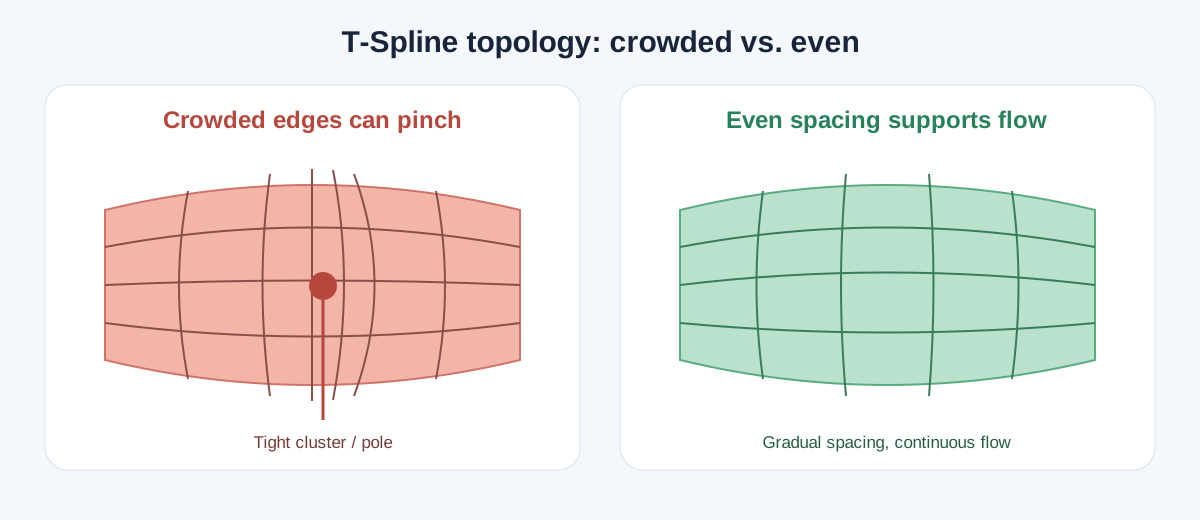
Crowded edges and poles can concentrate curvature. Evenly spaced edges usually give the surface a smoother flow.
What causes pinching and bumps?
A T-Spline surface follows a control cage made of faces, edges, and vertices. When the cage is uneven or crowded, the surface may not flow smoothly.
- Too many edges in one area: Closely spaced edges can create tight curvature and visible bumps.
- Poor edge flow: Abrupt changes in the direction or spacing of edges can distort the surface.
- Extraordinary points: Vertices connected to an unusual number of edges can create star-shaped pinches, especially on curved areas.
- Uneven vertex placement: A single vertex sitting out of line with its neighbors can pull the surface into a bump or dip.
- Over-editing: Adding more control points to fix a small problem can make the surface harder to manage.
Step 1: Inspect the surface and control cage
Switch between the smooth surface view and the control cage. Look for areas where edges bunch together, spacing changes suddenly, or several edges converge at one point.
Orbit the model and inspect it from multiple angles. A surface that looks smooth from the top may have a dip or ridge visible from the side. If the problem is difficult to spot, use Fusion 360’s display and analysis tools to make the surface curvature easier to judge.
Step 2: Simplify crowded areas
If a bump or pinch sits where many edges are packed together, try reducing the local complexity:
- Remove unnecessary edge loops or control points.
- Spread the remaining edges more evenly.
- Keep edge spacing gradual as it moves into and out of the problem area.
A simpler control cage often produces a smoother result than adding more geometry.
Step 3: Improve edge flow
Edges should follow the shape you want the surface to take. For example, on a product handle, the cage should flow along the length of the handle and wrap smoothly around its cross-section.
Move edges and vertices so they transition gradually around the form. Avoid sudden direction changes, tight clusters, and irregular spacing. If an area is difficult to control, consider rebuilding that section with a cleaner layout.
Step 4: Adjust nearby vertices gradually
Use Edit Form to move the vertices around the problem area in small increments. Check the smooth surface after each adjustment.
Avoid moving one vertex a long way while leaving its neighbors untouched. That can replace a bump with a dip or create a new ripple. Instead, adjust a small group of nearby vertices to spread the change across the surface.
Step 5: Check extraordinary points
An extraordinary point is a vertex connected to a number of edges other than the usual four. These points are sometimes necessary, but they can cause pinching when placed on a highly visible or tightly curved area.
When possible, move them toward flatter or less prominent regions. If the shape allows, reorganize nearby edges so the extraordinary point no longer sits at the center of the distortion.
Step 6: Use symmetry and symmetry checks
For a symmetrical design, enable symmetry while sculpting where appropriate. This helps keep both sides consistent and reduces the chance of creating a bump on only one side.
If the model should be symmetrical but was edited without symmetry, compare matching areas on both sides. Small differences in vertex position can affect how the surface flows.
Step 7: Review the surface before converting it
Before converting a T-Spline form to a solid or continuing with downstream features, inspect the model from different angles and check the transition areas. Fix visible pinches and uneven curvature while the control cage is still easy to edit.
If repeated edits are making the surface worse, undo them and return to the last clean version. Then simplify the topology and make smaller adjustments.
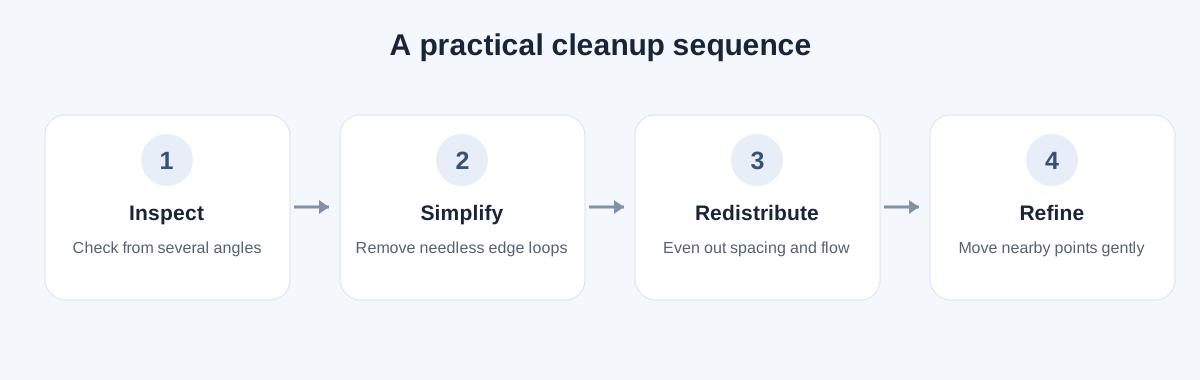
Work through these steps in order; inspect the surface after each adjustment.
Tips for smoother T-Spline surfaces
- Start with the fewest faces you need to define the shape.
- Add edges only when they help control a specific feature.
- Keep edge spacing as even as the design allows.
- Place extraordinary points away from broad, smooth highlights.
- Make small edits and inspect the result after each one.
- Check the model from several viewpoints, not just one.
Conclusion
Pinching and bumps in a Fusion 360 T-Spline model usually point to a control cage that is too crowded, uneven, or poorly arranged for the shape. Inspect the cage, simplify crowded areas, improve edge flow, and adjust groups of vertices gradually. With a cleaner layout and careful edits, you can create a smoother surface that is easier to refine and ready for the next stage of your design.
Fusion 360 Surface Design & T-Spline Sculpting
Master Surface Modeling and Organic T-Spline Sculpting to Create Professional Product Designs and Complex Freeform 3D Models.
Explore the Course - 3551-360x220.png)
 - 2085-360x220.png)
 - 3168-360x220.png)
